Saturday, April 11, 2026

Email: Definition, Features, Working, Advantages & Examples | ComputerGS | UPTET 2026 | UP Police

๐Ÿ“˜ Introduction

Email (Electronic Mail) is a method of sending and receiving messages digitally over the internet. It is one of the fastest and most widely used communication tools today.

Popular email services include Gmail, Yahoo Mail, and Outlook.


๐Ÿ“ฉ What is Email?

Email stands for Electronic Mail. It allows users to send text messages, files, images, and documents from one device to another via the internet.

๐Ÿ‘‰ Example: Sending a message through Gmail to a friend or teacher.


⚙️ How Email Works?

Image

Image

Image

Image

Image

Email works through a series of steps:

1. Compose Message

  • User writes an email using an email client.

2. Sending (SMTP)

  • The email is sent using SMTP (Simple Mail Transfer Protocol).

3. Mail Server

  • The message is stored on a mail server.

4. Receiving (POP3/IMAP)

  • Receiver gets email using:

    • POP3 (Post Office Protocol)

    • IMAP (Internet Message Access Protocol)


๐Ÿงฉ Structure of an Email

Image

Image

Image

Image

Image

Image

Image

An email consists of the following parts:

  • To – Receiver’s email address

  • From – Sender’s email address

  • Subject – Topic of the message

  • CC (Carbon Copy) – Send copy to others

  • BCC (Blind Carbon Copy) – Hidden copy

  • Body – Main message content

  • Attachments – Files sent with email


✉️ Features of Email

  • Fast communication

  • Supports attachments

  • Accessible anywhere

  • Cost-effective

  • Easy to store and search


๐ŸŒ Types of Email Services

1. Web-Based Email

  • Access through browser

  • Example: Gmail

2. Client-Based Email

  • Use software like Outlook

  • Example: Outlook


✅ Advantages of Email

  • Instant communication

  • Low cost

  • Environment-friendly (paperless)

  • Can send multiple recipients

  • Record keeping


❌ Disadvantages of Email

  • Spam emails

  • Virus risk

  • Requires internet

  • Privacy issues


๐ŸŽฏ Uses of Email

  • Business communication

  • Educational purposes

  • Sending documents

  • Online registrations

  • Notifications and alerts


❓ MCQ (Important for Exams)

1. What does Email stand for?
A) Electric Mail
B) Electronic Mail
C) Easy Mail
D) External Mail
๐Ÿ‘‰ Answer: B


2. Which protocol is used to send emails?
A) FTP
B) HTTP
C) SMTP
D) TCP
๐Ÿ‘‰ Answer: C


3. Which field hides recipient addresses?
A) To
B) CC
C) BCC
D) Subject
๐Ÿ‘‰ Answer: C


4. Which of the following is an email service?
A) Windows
B) Gmail
C) Linux
D) Android
๐Ÿ‘‰ Answer: B


5. What is the full form of SMTP?
A) Simple Mail Transfer Protocol
B) Secure Mail Transfer Process
C) System Mail Transfer Protocol
D) Simple Message Transfer Process
๐Ÿ‘‰ Answer: A


๐Ÿ“ข Conclusion

Email is an essential communication tool in today’s digital world. Understanding its structure, working, and uses is important for both exams and practical life.


Search Engine: Definition, Types, Working & Examples | ComputerGS | UP TET 2026 | UP Police

๐Ÿ“˜ Introduction

A Search Engine is a software system that helps users find information on the internet by entering keywords or queries. It is one of the most important tools used in daily digital life.

Popular search engines include Google, Bing, and Yahoo.


๐Ÿ”Ž What is a Search Engine?

A Search Engine is a web-based tool that searches for information on the World Wide Web (WWW) and displays relevant results.

๐Ÿ‘‰ Example: When you search “Computer Basics” on Google, it shows a list of related websites.


⚙️ How Search Engine Works?

Image

Image

Image

Image

Image

Image

Search engines work in three main steps:

1. Crawling

  • Search engines use bots (also called spiders) to scan websites.

  • These bots collect data from web pages.

2. Indexing

  • Collected data is stored in a database called an index.

  • It organizes information for quick retrieval.

3. Ranking

  • The search engine ranks results based on relevance.

  • The most useful pages appear at the top.


๐Ÿ“‚ Types of Search Engines

1. Crawler-Based Search Engines

  • Use bots to crawl and index pages.

  • Example: Google, Bing

2. Directory-Based Search Engines

  • Human-edited directories.

  • Example: Yahoo Directory

3. Meta Search Engines

  • Show results from multiple search engines.

  • Example: Dogpile


๐ŸŒ Popular Search Engines

Image

Image

Image

Image

Image

Image

  • Google (Most popular worldwide)

  • Bing

  • Yahoo

  • DuckDuckGo


✅ Advantages of Search Engines

  • Fast access to information

  • Easy to use

  • Saves time

  • Provides updated results

  • Helps in research and study


❌ Disadvantages of Search Engines

  • May show irrelevant results

  • Risk of fake or misleading information

  • Privacy concerns

  • Too much information (information overload)


๐ŸŽฏ Uses of Search Engines

  • Searching information

  • Online learning

  • Shopping

  • News updates

  • Entertainment


❓ MCQ (Important for Exams)

1. What is a Search Engine?
A) Hardware
B) Software
C) Network
D) Device
๐Ÿ‘‰ Answer: B


2. Which of the following is a search engine?
A) Windows
B) Linux
C) Google
D) MS Word
๐Ÿ‘‰ Answer: C


3. What does crawling mean?
A) Searching files offline
B) Collecting data from web pages
C) Ranking websites
D) Saving files
๐Ÿ‘‰ Answer: B


4. Which search engine is developed by Microsoft?
A) Google
B) Yahoo
C) Bing
D) DuckDuckGo
๐Ÿ‘‰ Answer: C


5. Which is a privacy-focused search engine?
A) Google
B) Bing
C) Yahoo
D) DuckDuckGo
๐Ÿ‘‰ Answer: D


๐Ÿ“ข Conclusion

A Search Engine is an essential tool for accessing information on the internet. Understanding its working (crawling, indexing, ranking) is important for both exams and real-life usage.


Thursday, April 9, 2026

Computer Fundamentals – Complete Notes, Basics, Components & MCQs | Computer Operator | UP Police

๐Ÿ’ป Computer Fundamentals – Complete Guide

๐Ÿ“Œ Introduction

Computer Fundamentals refer to the basic concepts and components of a computer system. It is the foundation for understanding how computers work.

๐Ÿ‘‰ A computer is an electronic device that accepts data, processes it, and produces output.


๐Ÿ“š Definition of Computer

A computer is an electronic machine that processes raw data into meaningful information.


⚙️ Basic Components of Computer

1. ๐Ÿงพ Input Unit

The input unit is used to enter data into the computer.

Examples:

  • Keyboard

  • Mouse

  • Scanner


2. ๐Ÿง  Central Processing Unit (CPU)

CPU is known as the brain of the computer.

It has three parts:

  • ALU (Arithmetic Logic Unit)

  • CU (Control Unit)

  • Registers


3. ๐Ÿ–ฅ️ Output Unit

The output unit displays the result.

Examples:

  • Monitor

  • Printer

  • Speaker


๐Ÿ”„ Working of Computer (IPO Cycle)

๐Ÿ‘‰ Input → Process → Output

  • Input: Data is entered

  • Process: CPU processes data

  • Output: Result is displayed


๐Ÿ’พ Memory of Computer

1. Primary Memory

  • RAM (Random Access Memory)

  • ROM (Read Only Memory)

2. Secondary Memory

  • Hard Disk

  • Pen Drive

  • CD/DVD


๐Ÿงฉ Types of Software

1. ๐Ÿ–ฅ️ System Software

Controls computer hardware.

Examples:

  • Windows Operating System

  • Linux


2. ๐Ÿ“„ Application Software

Used for specific tasks.

Examples:

  • Microsoft Word

  • Microsoft Excel


๐ŸŒ Types of Computers

  • Super Computer

  • Mainframe Computer

  • Mini Computer

  • Micro Computer (PC, Laptop)


Characteristics of Computer

  • Speed

  • Accuracy

  • Storage

  • Automation

  • Versatility


๐ŸŽฏ Advantages of Computer

  • Fast processing

  • Large storage capacity

  • High accuracy

  • Multitasking


⚠️ Disadvantages of Computer

  • No intelligence

  • Security risks

  • Requires electricity


๐Ÿง  Important MCQs (Exam Practice)

Q1. Computer is an ______ device.
A) Mechanical
B) Electronic ✅
C) Manual
D) Automatic


Q2. CPU stands for:
A) Central Program Unit
B) Central Processing Unit ✅
C) Control Processing Unit
D) Computer Processing Unit


Q3. Which is an input device?
A) Monitor
B) Printer
C) Keyboard ✅
D) Speaker


Q4. Which memory is temporary?
A) ROM
B) RAM ✅
C) Hard Disk
D) CD


Q5. Which is system software?
A) MS Word
B) Excel
C) Windows ✅
D) Paint


๐Ÿ“ข Conclusion

Computer Fundamentals is the basic building block of computer knowledge. It helps students understand how computers work and is very important for competitive exams.


๐ŸŒ Call to Action (CTA)

๐Ÿ‘‰ For more notes, MCQs, and study material visit:
www.computergs.online


E-Services in Computer | Types, Benefits & Examples – Complete Guide for Exams

๐Ÿ’ป E-Services (Electronic Services) – Complete Notes

๐Ÿ“Œ Introduction

E-Services (Electronic Services) refer to services that are delivered through the internet using electronic devices such as computers, smartphones, or tablets. These services make work faster, easier, and more efficient.

In simple words:
๐Ÿ‘‰ E-Services = Services provided through electronic medium (Internet)


๐Ÿ“š Definition

E-Services are services that are accessed and delivered via digital platforms using internet technology.


๐Ÿ”‘ Types of E-Services

1. ๐ŸŒ E-Governance

Services provided by the government through the internet.

Examples:

  • Online Aadhaar services

  • Income tax filing

  • Online voting (in some countries)


2. ๐Ÿ›’ E-Commerce

Buying and selling goods online.

Examples:

  • Amazon

  • Flipkart


3. ๐Ÿฆ E-Banking

Online banking services.

Examples:

  • Online money transfer

  • Mobile banking

  • Net banking


4. ๐ŸŽ“ E-Learning

Education through online platforms.

Examples:

  • Online classes

  • Digital courses

  • Coursera


5. ๐Ÿ“ง E-Mail Services

Sending and receiving messages electronically.

Examples:

  • Gmail

  • Yahoo Mail


6. ๐ŸŽŸ️ E-Ticketing

Booking tickets online.

Examples:

  • Railway tickets

  • Flight booking

  • Movie tickets


7. ๐Ÿฅ E-Healthcare

Medical services through internet.

Examples:

  • Online doctor consultation

  • Health apps


Features of E-Services

  • ✔️ Available 24×7

  • ✔️ Fast and time-saving

  • ✔️ Accessible from anywhere

  • ✔️ User-friendly

  • ✔️ Cost-effective


๐ŸŽฏ Advantages of E-Services

  • Saves time and money

  • Reduces paperwork

  • Easy access to services

  • Improves transparency

  • Increases efficiency


⚠️ Disadvantages of E-Services

  • Requires internet connection

  • Risk of cyber crime

  • Technical issues

  • Digital illiteracy


๐Ÿ“Š Applications of E-Services

  • Education sector

  • Banking sector

  • Government services

  • Healthcare

  • Business and shopping


๐Ÿง  Important MCQs (Exam Practice)

Q1. What does E-Service stand for?
A) Electrical Service
B) Electronic Service ✅
C) Energy Service
D) External Service


Q2. Which of the following is an example of E-Commerce?
A) Classroom teaching
B) Online shopping ✅
C) Newspaper
D) Telephone


Q3. Which service is used to send electronic messages?
A) E-Commerce
B) E-Mail ✅
C) E-Ticketing
D) E-Banking


Q4. E-Banking helps in:
A) Playing games
B) Online transactions ✅
C) Writing documents
D) Watching videos


Q5. Which is NOT an E-Service?
A) Online shopping
B) Net banking
C) Postal letter ✅
D) Email


๐Ÿ“ข Conclusion

E-Services have transformed the way we live and work. From banking to education, everything is now available online. Understanding E-Services is very important for students preparing for competitive exams like UPTET, SSC, and others.


๐ŸŒ Call to Action (CTA)

๐Ÿ‘‰ For more computer notes, MCQs and study material visit:
www.computergs.online


Tuesday, April 7, 2026

Peripheral Devices – Complete Notes with Examples & MCQs | Computergs | UP Police SI

๐Ÿ–ฅ️ Peripheral Devices (Computer)

๐Ÿ“– Introduction

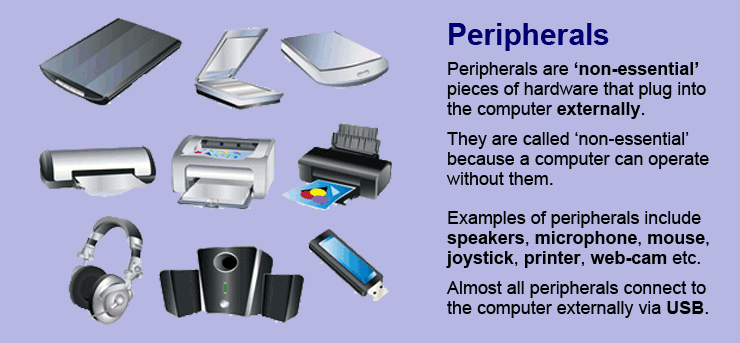
Peripheral Devices are external devices connected to a computer system that help in input, output, and storage operations.

They are not part of the core computer (CPU & memory) but are essential for communication between user and computer.


๐Ÿ”Œ Types of Peripheral Devices

Image

Image

Image

Image

Peripheral devices are mainly divided into three categories:


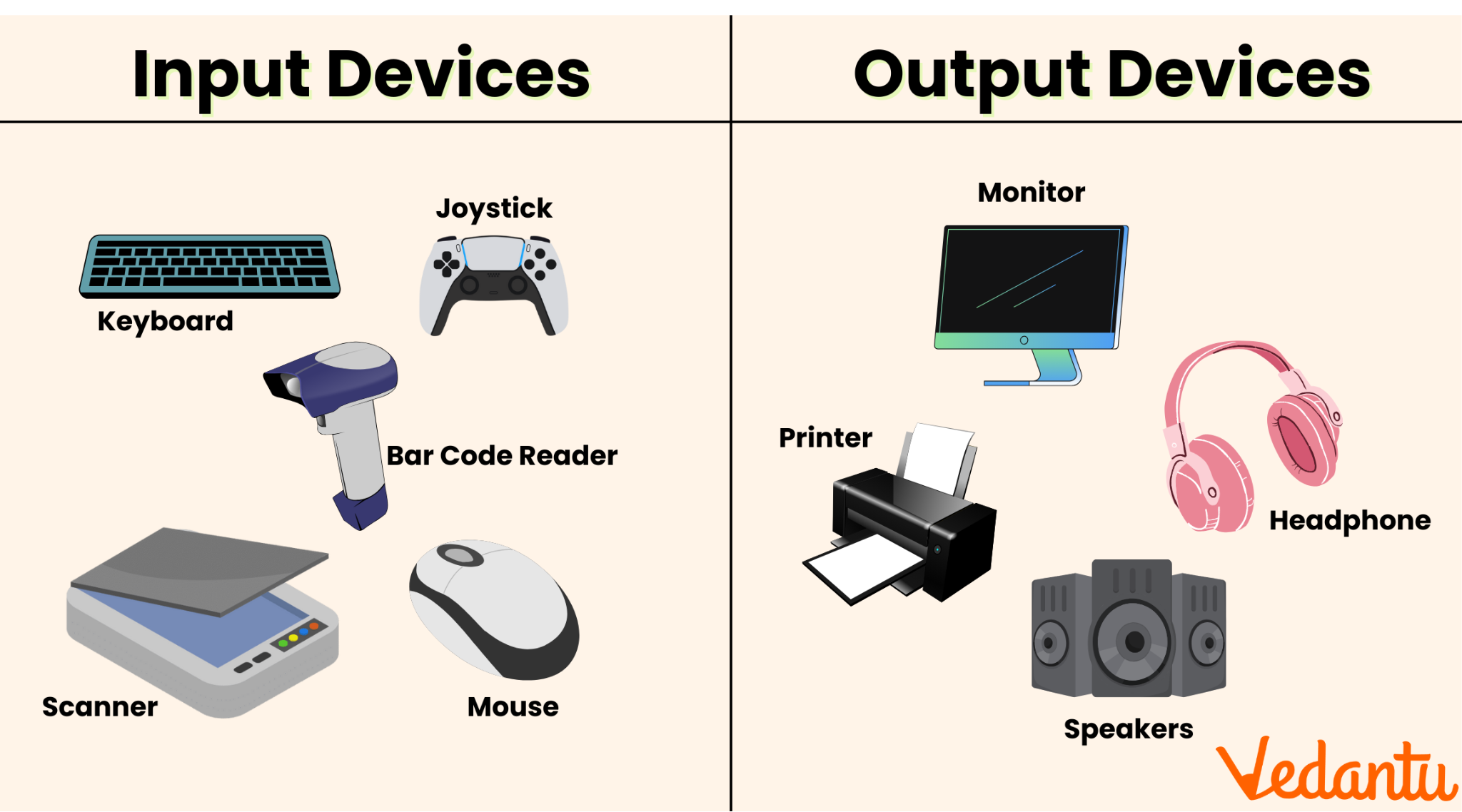
⌨️ 1. Input Devices

Devices used to enter data and instructions into the computer.

Examples:

  • Keyboard

  • Mouse

  • Scanner

  • Microphone

  • Webcam

Key Points:

  • Converts user input into digital form

  • Essential for data entry


๐Ÿ–จ️ 2. Output Devices

Devices used to display or produce results from the computer.

Examples:

  • Monitor

  • Printer

  • Speaker

  • Projector

Key Points:

  • Converts processed data into human-readable form


๐Ÿ’พ 3. Storage Devices

Devices used to store data permanently or temporarily.

Examples:

  • Hard Disk

  • SSD

  • Pen Drive

  • CD/DVD

Key Points:

  • Stores large amount of data

  • Used for backup and transfer


๐Ÿ”„ Input vs Output Devices

Input DevicesOutput Devices
Accept dataDisplay results
Example: KeyboardExample: Monitor
User → ComputerComputer → User

⚙️ Other Peripheral Devices

๐Ÿ”น Communication Devices

  • Modem

  • Network Card

๐Ÿ”น Hybrid Devices

Devices that can perform both input and output:

  • Touchscreen

  • Multifunction Printer


๐ŸŽฏ Important Points for Exams

  • Peripheral devices are external devices

  • Input devices send data to computer

  • Output devices show results

  • Storage devices store data

  • Touchscreen = Hybrid device


❓ MCQs (Practice Questions)

Q1. Peripheral devices เค•्เคฏा เคนोเคคे เคนैं?

A. Internal devices
B. External devices connected to computer ✅
C. Only CPU
D. Only software


Q2. Keyboard เค•िเคธ เคช्เคฐเค•ाเคฐ เค•ा device เคนै?

A. Output
B. Input ✅
C. Storage
D. Hybrid


Q3. Printer เค•ा เค‰เคชเคฏोเค— เค•िเคธเคฒिเค เคนोเคคा เคนै?

A. Input เคฆेเคจा
B. Output เคช्เคฐाเคช्เคค เค•เคฐเคจा ✅
C. Data store เค•เคฐเคจा
D. Processing


Q4. Hard Disk เค•िเคธ เคช्เคฐเค•ाเคฐ เค•ा device เคนै?

A. Input
B. Output
C. Storage ✅
D. Hybrid


Q5. Touchscreen เค•िเคธ เคช्เคฐเค•ाเคฐ เค•ा device เคนै?

A. Input
B. Output
C. Storage
D. Hybrid ✅


Q6. เค‡เคจเคฎें เคธे เค•ौเคจ เคธा input device เคนै?

A. Monitor
B. Speaker
C. Scanner ✅
D. Printer


Q7. Speaker เค•ा เค•ाเคฐ्เคฏ เค•्เคฏा เคนै?

A. Input เคฆेเคจा
B. Output เคฆेเคจा ✅
C. Store เค•เคฐเคจा
D. Process เค•เคฐเคจा


Q8. Pen Drive เค•िเคธ เคช्เคฐเค•ाเคฐ เค•ा device เคนै?

A. Input
B. Output
C. Storage ✅
D. Processing


Q9. Modem เค•िเคธ เคช्เคฐเค•ाเคฐ เค•ा device เคนै?

A. Storage
B. Communication ✅
C. Input
D. Output


Q10. Webcam เค•ा เค‰เคชเคฏोเค— เค•िเคธเคฒिเค เคนोเคคा เคนै?

A. Output
B. Input (video capture) ✅
C. Storage
D. Printing


๐Ÿ“Œ Conclusion

Peripheral Devices play a vital role in making a computer system interactive and functional. Understanding their types and uses is very important for competitive exams.


Computer System and Organization – Complete Notes for Competitive Exams

๐Ÿ’ป Computer System and Organization

๐Ÿ“– Introduction

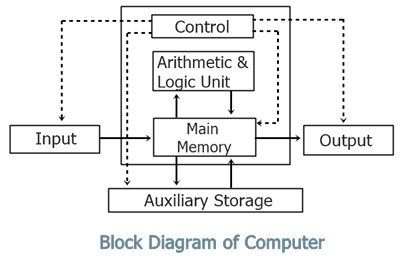
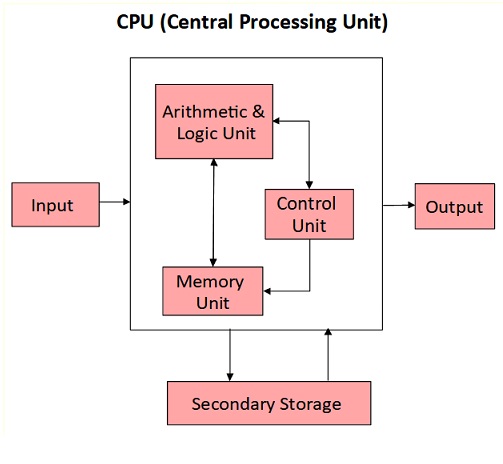
A Computer System is a combination of hardware and software that works together to process data and produce meaningful information.

Computer Organization refers to the internal structure and operational units of a computer system.


๐Ÿงฉ Components of Computer System

Image

Image

Image

Image

1. Input Unit

  • Used to enter data into the computer

  • Converts user input into machine-readable form

  • Examples: Keyboard, Mouse, Scanner


2. Central Processing Unit (CPU)

  • Known as the brain of the computer

  • Performs all calculations and processing

CPU consists of:

  • ALU (Arithmetic Logic Unit) – Performs calculations

  • CU (Control Unit) – Controls all operations

  • Registers – Temporary storage


3. Memory Unit

  • Stores data and instructions

Types of Memory:

  • Primary Memory (RAM, ROM)

  • Secondary Memory (Hard Disk, SSD, Pen Drive)


4. Output Unit

  • Displays the result of processing

  • Examples: Monitor, Printer, Speaker


⚙️ Computer Organization

Image

Image

Image

Image

Computer Organization explains how different components of a computer system are interconnected and work together.

Key Concepts:

  • Instruction Execution Cycle (Fetch → Decode → Execute)

  • Data Flow between CPU and Memory

  • Control Signals and Timing


๐Ÿ”„ Instruction Cycle

  1. Fetch – Instruction is taken from memory

  2. Decode – Instruction is understood by CPU

  3. Execute – Operation is performed


๐Ÿง  Types of Computer Architecture

1. Von Neumann Architecture

  • Uses single memory for data and instructions

2. Harvard Architecture

  • Separate memory for data and instructions


⚡ Difference: Computer System vs Organization

Computer SystemComputer Organization
Deals with overall systemDeals with internal working
Includes hardware & softwareFocuses on hardware structure
User-orientedMachine-oriented

๐ŸŽฏ Important Points for Exams

  • CPU = ALU + CU + Registers

  • RAM is volatile, ROM is non-volatile

  • Fetch-Decode-Execute cycle is basic process

  • Input → Process → Output cycle


❓ MCQs (Practice Questions)

Q1. CPU เค•ा เคชूเคฐा เคจाเคฎ เค•्เคฏा เคนै?

A. Central Process Unit
B. Central Processing Unit ✅
C. Computer Processing Unit
D. Control Processing Unit


Q2. ALU เค•ा เค•ाเคฐ्เคฏ เค•्เคฏा เคนै?

A. Data storage
B. Input เคฆेเคจा
C. Arithmetic & Logical operations ✅
D. Output เคฆेเคจा


Q3. RAM เค•िเคธ เคช्เคฐเค•ाเคฐ เค•ी memory เคนै?

A. Non-volatile
B. Volatile ✅
C. Permanent
D. Secondary


Q4. Computer เค•ा brain เค•िเคธे เค•เคนा เคœाเคคा เคนै?

A. RAM
B. Hard Disk
C. CPU ✅
D. Monitor


Q5. Fetch-Decode-Execute cycle เค•िเคธเคธे เคธंเคฌंเคงिเคค เคนै?

A. Input unit
B. Output unit
C. CPU ✅
D. Printer


Q6. ROM เค•ा เค‰เคชเคฏोเค— เค•िเคธเคฒिเค เคนोเคคा เคนै?

A. Temporary storage
B. Permanent storage ✅
C. Processing
D. Output


Q7. Control Unit เค•ा เค•ाเคฐ्เคฏ เค•्เคฏा เคนै?

A. Calculation เค•เคฐเคจा
B. Control operations ✅
C. Data store เค•เคฐเคจा
D. Print เค•เคฐเคจा


Q8. Secondary memory เค•ा เค‰เคฆाเคนเคฐเคฃ เค•ौเคจ เคธा เคนै?

A. RAM
B. Cache
C. Hard Disk ✅
D. Register


Q9. Harvard architecture เคฎें เค•्เคฏा เค…เคฒเค— เคนोเคคा เคนै?

A. CPU เคจเคนीं เคนोเคคा
B. Separate memory for data & instruction ✅
C. Input เคจเคนीं เคนोเคคा
D. Output เคจเคนीं เคนोเคคा


Q10. Computer system เค•ा เคฎुเค–्เคฏ เค•ाเคฐ्เคฏ เค•्เคฏा เคนै?

A. เค•ेเคตเคฒ input เคฒेเคจा
B. เค•ेเคตเคฒ output เคฆेเคจा
C. Data processing ✅
D. เค•ेเคตเคฒ storage


๐Ÿ“Œ Conclusion

Computer System and Organization is a fundamental topic for all competitive exams. Understanding components, architecture, and working principles helps in solving objective questions easily.


Methods of Communication | Computergs | UP Police | RO ARO

๐Ÿ“ก Methods of Communication (Complete Guide)

Communication is the process of exchanging information, ideas, thoughts, or feelings between individuals or groups. It plays a vital role in education, business, and daily life.


๐Ÿ”‘ Types / Methods of Communication

1. ๐Ÿ—ฃ️ Verbal Communication

Verbal communication involves the use of spoken or written words.

Examples:

  • Face-to-face conversation

  • Phone calls

  • Lectures & meetings

Advantages:

  • Quick feedback

  • Clear expression of ideas


2. ✍️ Written Communication

This method uses written words to convey messages.

Examples:

  • Emails

  • Letters

  • Reports

  • SMS / Chat messages

Advantages:

  • Permanent record

  • Suitable for formal communication


3. ๐Ÿ‘€ Non-Verbal Communication

Non-verbal communication includes gestures, body language, facial expressions, and eye contact.

Examples:

  • Smiling ๐Ÿ˜Š

  • Hand gestures

  • Posture

Advantages:

  • Expresses emotions effectively

  • Supports verbal communication


4. ๐Ÿ“Š Visual Communication

Visual communication uses visual elements to share information.

Examples:

  • Charts & graphs

  • Images & videos

  • Infographics

Advantages:

  • Easy to understand

  • Attractive and engaging


5. ๐Ÿ’ป Digital Communication

Communication through digital platforms and the internet.

Examples:

  • Social media

  • Video conferencing

  • Messaging apps

Advantages:

  • Fast and global reach

  • Cost-effective


๐Ÿ“Œ Importance of Communication

  • Builds relationships

  • Improves understanding

  • Helps in decision-making

  • Essential for education & business


๐Ÿ“š MCQs on Methods of Communication (Important for Exams)

✅ 1. Communication is defined as:

A) Sending messages only
B) Receiving messages only
C) Exchange of information
D) Writing letters

✔️ Answer: C) Exchange of information


✅ 2. Which of the following is an example of verbal communication?

A) Email
B) Phone call
C) Gesture
D) Chart

✔️ Answer: B) Phone call


✅ 3. Written communication includes:

A) Speech
B) Body language
C) Emails
D) Facial expressions

✔️ Answer: C) Emails


✅ 4. Non-verbal communication includes:

A) Talking
B) Writing
C) Gestures
D) Emails

✔️ Answer: C) Gestures


✅ 5. Which is NOT a type of communication?

A) Visual
B) Digital
C) Mechanical
D) Verbal

✔️ Answer: C) Mechanical


✅ 6. Which communication method uses charts and graphs?

A) Verbal
B) Written
C) Visual
D) Digital

✔️ Answer: C) Visual


✅ 7. Communication through internet is called:

A) Visual communication
B) Digital communication
C) Non-verbal communication
D) Written communication

✔️ Answer: B) Digital communication


✅ 8. Facial expressions are part of:

A) Verbal communication
B) Written communication
C) Non-verbal communication
D) Digital communication

✔️ Answer: C) Non-verbal communication


✅ 9. Which of the following provides a permanent record?

A) Verbal communication
B) Written communication
C) Non-verbal communication
D) Oral communication

✔️ Answer: B) Written communication


✅ 10. Which communication is fastest?

A) Written
B) Digital
C) Non-verbal
D) Visual

✔️ Answer: B) Digital


๐Ÿ“ Conclusion

Communication is the backbone of human interaction. Understanding its different methods helps in improving personal, academic, and professional success.


Saturday, April 4, 2026

Windows Basics – Complete Notes for Competitive Exams UPP Computer Operator | ComputerGS

๐Ÿ–ฅ️ Windows Basics – Complete Guide for Beginners (UPTET, UPP Computer Operator, UPP SI)

๐Ÿ“Œ Introduction

Microsoft Windows is one of the most widely used Operating Systems (OS) in the world. It provides a Graphical User Interface (GUI) that allows users to interact with computers easily using icons, menus, and windows.


๐Ÿ“Œ What is an Operating System?

An Operating System is system software that:

  • Manages hardware and software

  • Provides user interface

  • Controls memory, files, and processes

๐Ÿ‘‰ Examples:

  • Windows

  • Linux

  • macOS


๐Ÿ“Œ Features of Windows

  • User-friendly interface

  • Multitasking capability

  • Plug and Play support

  • Security features (Firewall, Defender)

  • File management system


๐Ÿ“Œ Main Components of Windows

๐Ÿ–ฅ️ 1. Desktop

  • First screen after login

  • Contains icons, taskbar, and wallpaper

๐Ÿ“‚ 2. Icons

  • Small graphical representation of programs/files
    ๐Ÿ‘‰ Types:

  • Application icons

  • Shortcut icons

  • System icons (Recycle Bin, This PC)

๐Ÿ“Š 3. Taskbar

  • Located at bottom of screen

  • Contains Start Menu, pinned apps, and system tray

๐Ÿ”˜ 4. Start Menu

  • Main access point for programs

  • Includes apps, settings, power options


๐Ÿ“Œ File and Folder Management

๐Ÿ“ File

  • Collection of data (e.g., .txt, .docx, .jpg)

๐Ÿ“‚ Folder

  • Container to store files

๐Ÿ“Œ Common Operations:

  • Create → Right click → New

  • Rename → Right click → Rename

  • Delete → Press Delete key

  • Copy/Paste → Ctrl + C / Ctrl + V


๐Ÿ“Œ Control Panel

Used to manage system settings:

  • Hardware settings

  • Software installation

  • User accounts

  • Date & time


๐Ÿ“Œ Windows Explorer (File Explorer)

  • Used to browse files and folders

  • Shortcut: Windows + E


๐Ÿ“Œ Common Keyboard Shortcuts

ShortcutFunction
Ctrl + CCopy
Ctrl + VPaste
Ctrl + XCut
Ctrl + ZUndo
Alt + TabSwitch apps
Windows + DShow Desktop
Windows + EOpen File Explorer

๐Ÿ“Œ Types of Windows OS

  • Windows XP

  • Windows 7

  • Windows 8

  • Windows 10

  • Windows 11


๐Ÿ“Œ Advantages of Windows

✔ Easy to use
✔ Supports many applications
✔ Widely used in offices and schools

๐Ÿ“Œ Disadvantages

❌ Paid license
❌ Virus prone
❌ Requires regular updates


๐ŸŽฏ Important MCQs on Windows Basics

Q1. Windows is a type of?

A. Hardware
B. Software
C. Operating System ✅
D. Application


Q2. Which key opens Start Menu?

A. Alt
B. Ctrl
C. Windows Key ✅
D. Shift


Q3. File Explorer is used for?

A. Playing games
B. Managing files ✅
C. Browsing internet
D. Editing videos


Q4. Shortcut for Copy?

A. Ctrl + X
B. Ctrl + C ✅
C. Ctrl + V
D. Ctrl + Z


Q5. Which is system software?

A. MS Word
B. Excel
C. Windows OS ✅
D. Chrome


Q6. Taskbar is located at?

A. Top
B. Bottom ✅
C. Left
D. Right


Q7. Recycle Bin is used for?

A. Store files
B. Delete files temporarily ✅
C. Open apps
D. Run programs


Q8. Windows + D does?

A. Delete file
B. Show desktop ✅
C. Copy file
D. Open browser


Q9. Control Panel is used for?

A. Gaming
B. Settings management ✅
C. Browsing
D. Typing


Q10. GUI stands for?

A. General User Interface
B. Graphical User Interface ✅
C. Global User Interface
D. Graphic Utility Interface


๐Ÿ”š Conclusion

Windows Basics is an essential topic for all competitive exams like UPTET, SSC, RRB, and Banking. Understanding its features, components, and shortcuts helps in both exams and real-life computer usage.


Suggested Important Links for UPTET Exam 2026

Thursday, April 2, 2026

Data Structure Notes in Computer | Types, Examples | ComputerGS


๐Ÿ“š Data Structure – Complete Notes | ComputerGS


๐Ÿ”ท What is Data Structure?

A Data Structure is a way of organizing, storing, and managing data so that it can be accessed and modified efficiently.

๐Ÿ‘‰ It helps in improving performance and reducing complexity in programs.


๐Ÿ”ท Definition

๐Ÿ‘‰ “Data Structure is a systematic way of organizing data in memory to perform operations efficiently.”


๐Ÿ”ท Types of Data Structure

1. Linear Data Structure

๐Ÿ‘‰ Elements are arranged sequentially (one after another)

✔ Examples:

  • Array

  • Linked List

  • Stack

  • Queue


2. Non-Linear Data Structure

๐Ÿ‘‰ Elements are arranged hierarchically or interconnected

✔ Examples:

  • Tree

  • Graph


๐Ÿ”ท Basic Data Structures

1. Array

๐Ÿ‘‰ Collection of elements stored at contiguous memory locations

✔ Features:

  • Fixed size

  • Fast access using index


2. Linked List

๐Ÿ‘‰ Collection of nodes where each node contains data + pointer

✔ Types:

  • Singly Linked List

  • Doubly Linked List

  • Circular Linked List


3. Stack (LIFO)

๐Ÿ‘‰ Last In First Out principle

✔ Operations:

  • Push (Insert)

  • Pop (Delete)

๐Ÿ“Œ Example: Plate stack


4. Queue (FIFO)

๐Ÿ‘‰ First In First Out principle

✔ Operations:

  • Enqueue (Insert)

  • Dequeue (Delete)

๐Ÿ“Œ Example: Line at ticket counter


5. Tree

๐Ÿ‘‰ Hierarchical structure with root and child nodes

✔ Types:

  • Binary Tree

  • Binary Search Tree


6. Graph

๐Ÿ‘‰ Collection of vertices (nodes) and edges

✔ Used in networks, maps, social media


๐Ÿ”ท Operations on Data Structure

✔ Insertion
✔ Deletion
✔ Traversal
✔ Searching
✔ Sorting


๐Ÿ”ท Classification (Simple View)

TypeStructure StyleExamples
LinearSequentialArray, Stack, Queue
Non-LinearHierarchicalTree, Graph

๐Ÿ”ท Advantages of Data Structures

✔ Efficient data management
✔ Faster processing
✔ Better memory utilization
✔ Helps in algorithm design


๐Ÿ”ท Disadvantages

❌ Complex implementation
❌ Requires more memory (sometimes)
❌ Needs good understanding


๐Ÿ”ท Applications

✔ Database Management Systems (DBMS)
✔ Operating Systems
✔ Artificial Intelligence
✔ Networking
✔ Compiler Design


๐Ÿ”ท Important Exam Points

⭐ Data structure organizes data efficiently
⭐ Stack follows LIFO, Queue follows FIFO
⭐ Array uses contiguous memory
⭐ Tree & Graph are non-linear structures
⭐ Linked List uses pointers


Suggested Important Links for UPTET Exam 2026


Truth Table in Computer | Logic Gates Table | ComputerGS | UPTET 2026 | UPPSI


๐Ÿ“Š Truth Table – Complete Notes (Ready to Use for ComputerGS)

Image


Image


๐Ÿ”ท What is a Truth Table?

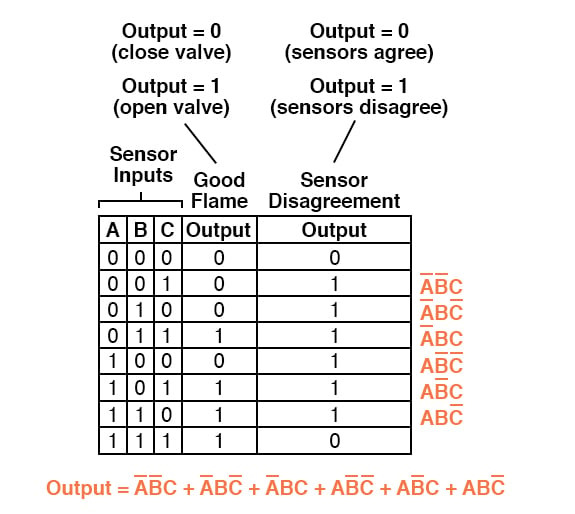
A Truth Table is a table used in Boolean Algebra and digital electronics to show all possible values of logical expressions based on different combinations of inputs.

๐Ÿ‘‰ It represents how a logic gate or expression behaves for every possible input.


๐Ÿ”ท Basic Logic Values

SymbolMeaning
0False
1True

๐Ÿ”ท Basic Logic Gates Truth Tables

1. AND Gate ( ∧ )

๐Ÿ‘‰ Output is 1 only when both inputs are 1

A          B              A ∧ B
0          0                 0
0          1                 0
1          0                 0
1          1                 1

2. OR Gate ( ∨ )

๐Ÿ‘‰ Output is 1 when at least one input is 1

A                  B             A ∨ B
0                  0                0
0                  1                1
1                  0                1
1                  1                1

3. NOT Gate ( ¬ )

๐Ÿ‘‰ Output is the opposite of input

A            ¬A
0                1
1                0

4. NAND Gate

๐Ÿ‘‰ Opposite of AND

A            B        NAND
0            0            1
0            1            1
1               0            1
1            1            0

5. NOR Gate

๐Ÿ‘‰ Opposite of OR

A            B        NOR
0            0            1
0            1            0
1            0            0
1            1            0

6. XOR Gate ( ⊕ )

๐Ÿ‘‰ Output is 1 when inputs are different

A            B            A ⊕ B
0            0                0
0            1                1
1            0                1
1            1                0

7. XNOR Gate

๐Ÿ‘‰ Output is 1 when inputs are same

A            B        XNOR
0            0        1
0            1        0
1            0        0
1            1        1

๐Ÿ”ท Truth Table Formula Rule

๐Ÿ‘‰ For n inputs, number of rows =  2^n

Example:

  • 2 inputs → 4 rows

  • 3 inputs → 8 rows


๐Ÿ”ท Example: Combined Expression

Expression:
๐Ÿ‘‰ Y = (A ∧ B) ∨ ¬A

A    B        A ∧ B        ¬A    Y
0    0            0            1    1
0    1            0            1    1
1    0            0            0    0
1        1            1            0    1

๐Ÿ”ท Applications of Truth Table

✔ Digital Circuits Design
✔ Computer Logic & Programming
✔ Error Detection Systems
✔ Decision Making Systems
✔ Competitive Exams (UPTET, SSC, RRB)


๐Ÿ”ท Important Exam Points

⭐ Truth table shows all possible combinations
⭐ Based on binary logic (0 & 1)
⭐ Used in Boolean Algebra & Logic Gates
⭐ NAND and NOR are Universal Gates
⭐ Number of rows = 2โฟ


Suggested Important Links for UPTET Exam 2026

Email: Definition, Features, Working, Advantages & Examples | ComputerGS | UPTET 2026 | UP Police

๐Ÿ“˜ Introduction Email (Electronic Mail) is a method of sending and receiving messages digitally over the internet. It is one of the fastest...